Telegram Chinese Settings Guide: Desktop and Mobile Instructions
This guide explains how to change Telegram's interface to Chinese on desktop and mobile by adjusting settings or using official translation projects, while

Telegram is a popular instant messaging application that many people use for everyday communication, joining communities, and conducting international business.
However, some users may find that Telegram displays its interface in English when they first start using the application. This can make navigation less convenient, especially for new users who are unfamiliar with the platform. They may not know where to change the language or how to choose a Chinese language pack.
So, how can you set Telegram to Chinese? Are the steps the same on desktop and mobile devices?
This article explains how to change Telegram's interface language on desktop and mobile devices. It also covers language packs, common setup issues, and how to restore the original interface language.
1. What Should You Prepare Before Setting Telegram to Chinese?
Before changing the language, it is recommended to check the following:
Check the Telegram client version: Use a relatively recent version of Telegram to avoid potential issues caused by outdated software.
Check the application source: Download Telegram from its official website, the Apple App Store, or Google Play whenever possible.
Identify your device: Desktop and mobile versions have different menu layouts, so make sure you follow the instructions for your device.
Understand language packs: Some Chinese translations are maintained by the Telegram community. Translation wording and completion levels may vary between different language packs.
2. How to Set Telegram to Chinese on Desktop
Telegram Desktop is available for Windows, macOS, and other operating systems. The interface may vary slightly depending on the system, but you can generally follow these steps.
Step 1: Open Telegram Desktop
Launch Telegram Desktop on your computer, log in to your account, and enter the main interface.
Step 2: Open Settings
Click the menu button in the upper-left corner, find Settings, and open it.
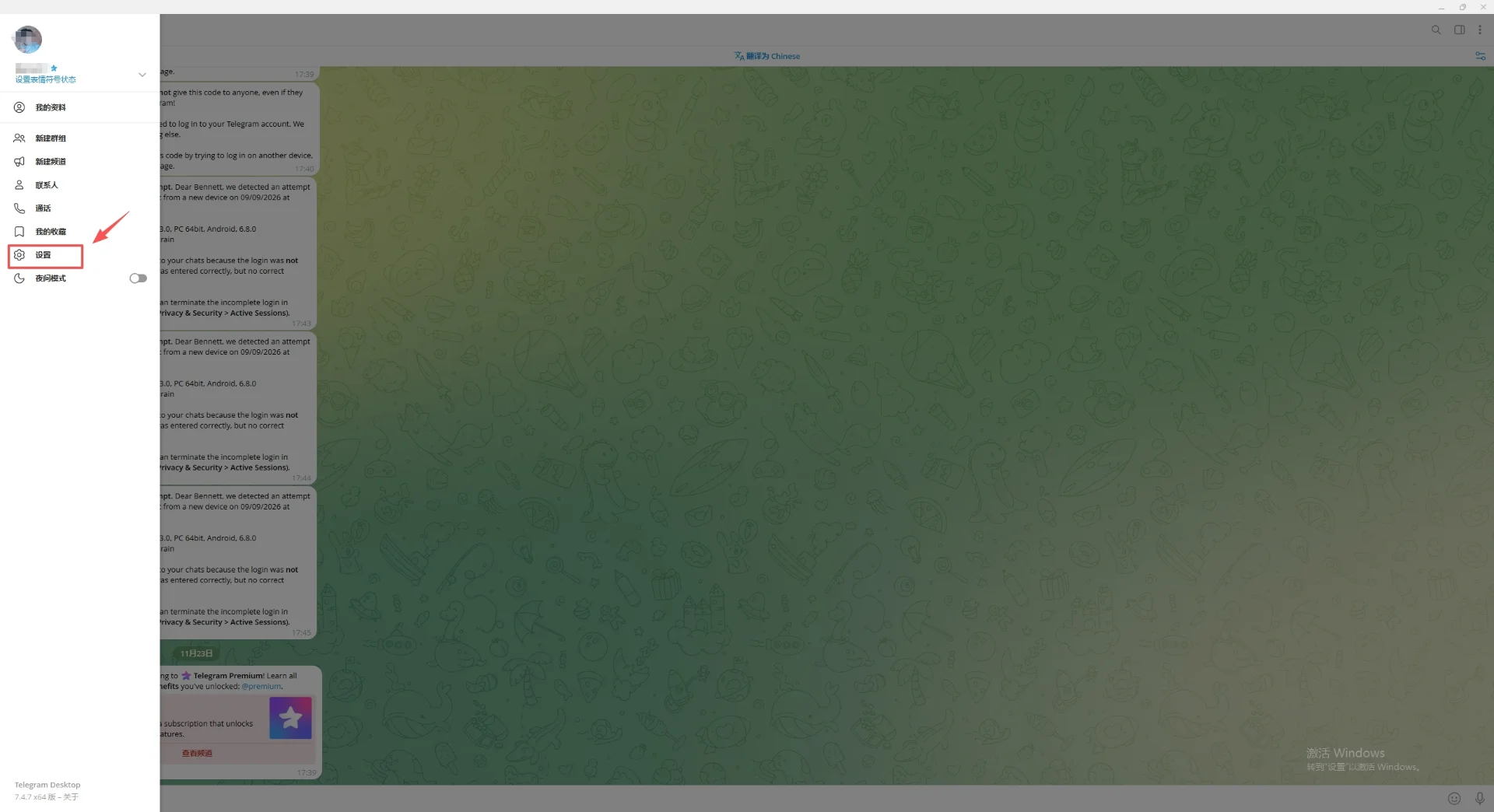
Step 3: Find Language Settings
Locate the Language option in the settings menu and check the available interface languages.
If a suitable Chinese option is already available, select it and confirm your choice.
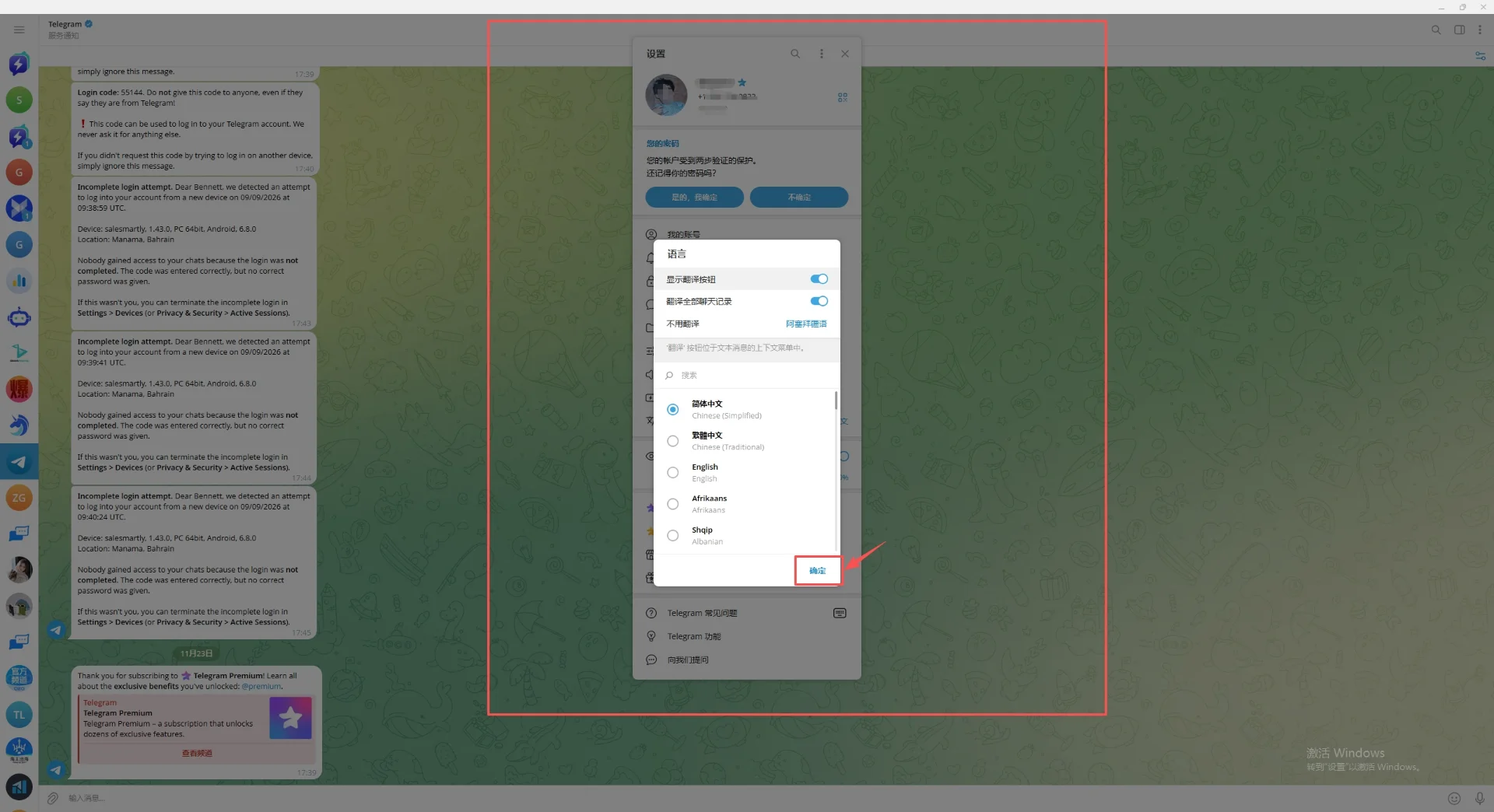
Step 4: Choose a Chinese Language Pack
If a suitable Chinese option is not available in the language list, visit Telegram's official translation platform to find the Simplified Chinese translation project.
Follow the language-switching instructions provided by the corresponding project, open Telegram, and confirm the application of the language.
Step 5: Check the Result
Return to the Telegram main interface and check whether the menus, settings, and chat interface have been changed to Chinese.
3. How to Set Telegram to Chinese on Mobile
Telegram is available on both Android and iPhone devices. The settings interface may differ depending on the operating system and application version.
1. How to Set Telegram to Chinese on Android
Step 1: Open the Telegram mobile application and log in to your account.
Step 2: Tap the menu button in the upper-left corner and select Settings.
Step 3: Find the Language option in the settings menu and check the available languages.
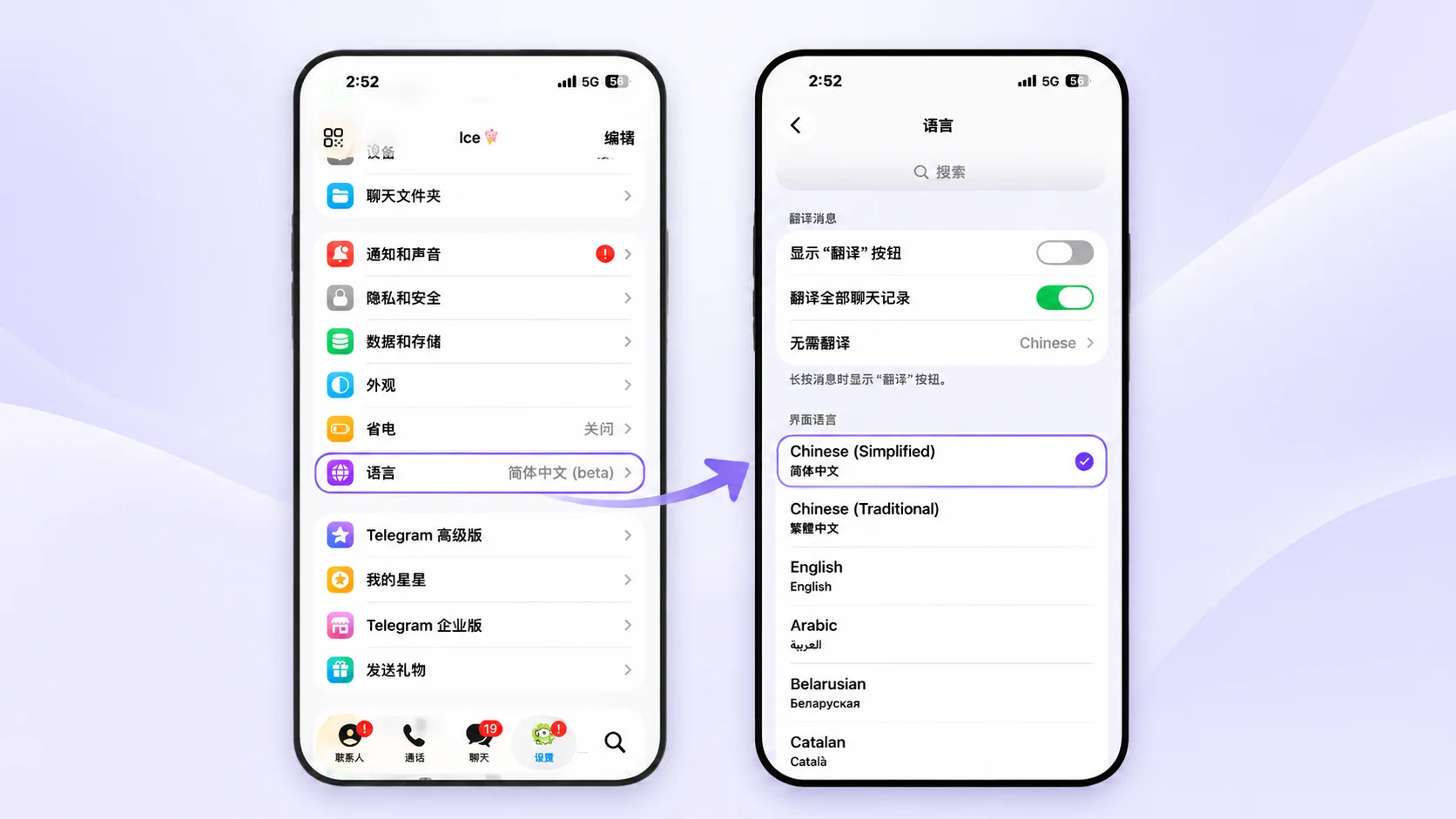
Step 4: If a suitable Chinese option is available, select it directly. If not, visit Telegram's official translation platform, find the Simplified Chinese project, and follow the available language-switching instructions.
Step 5: Return to the chat list and check whether the menus and settings are displayed correctly in Chinese.
2. How to Set Telegram to Chinese on iPhone
Step 1: Open the Telegram application on your iPhone.
Step 2: Tap Settings in the bottom navigation bar.
Step 3: Find the Language option and check the currently supported languages.
Step 4: If a suitable Chinese option is unavailable, visit Telegram's official translation platform, find the Simplified Chinese project, and follow the supported language-switching instructions.
Step 5: Return to the Telegram main interface and check whether the language has changed successfully.
Please note that Android and iOS have different interface layouts. Menu names and locations may also change as Telegram releases new versions.
4. What Is a Telegram Chinese Language Pack?
Some users may find that their preferred Chinese language option is not available in Telegram's language list. In this situation, they may encounter Chinese language packs.
Simply put, a language pack contains translated text that changes the language displayed throughout the Telegram interface.
Telegram provides an official translation platform where users can view translation projects for different languages and application versions, as well as contribute translation suggestions.
When using language packs, keep the following points in mind:
Different Chinese language packs may use different translations and wording.
Some language packs may not have completed all translations.
Language pack compatibility may vary between different clients.
Check the publisher and source before using language pack links shared by third parties.
Never provide your account password, verification code, or other sensitive information to third-party websites when applying a language pack.
We recommend checking Telegram's official translation platform first. Avoid downloading installation files from unknown sources or using language packs whose origins cannot be verified.
Official reference: https://translations.telegram.org/simplified-chinese/
5. Common Reasons Why Telegram Chinese Settings May Not Work
If Telegram still does not display Chinese after following the instructions, check the following possible reasons.
1. The Telegram Client Is Outdated
Some older versions may not support certain language-switching methods. Check whether an update is available and upgrade through the original official application source.
2. The Language Pack Is Not Compatible with Your Client
Some translation projects may only cover selected clients. Before choosing a language pack, check which application versions and platforms it supports.
3. The Language Change Was Not Confirmed
After opening a language-switching link, Telegram may require you to confirm the language application inside the client. If you do not complete this step, the interface may remain unchanged.
4. The Language Pack Is Incomplete
If some interface elements are still displayed in English or another language, it does not necessarily mean the setup has failed. Some translations may simply not have been completed.
5. You Are Using a Different or Modified Client
If you are using an unofficial or modified version of Telegram, some features and language-switching methods may differ from those of the official client. We recommend using a client from a verifiable source.
6. How to Restore the Original Interface Language After Setting Telegram to Chinese
If you are not comfortable with the Chinese interface or want to switch back to English, you can change the language through the settings menu.
Follow these general steps:
Open Telegram.
Go to Settings.
Find Language.
Select English.
Confirm the change.
Return to the main interface and check whether the language has been restored successfully.
Changing the interface language mainly affects how text is displayed in the application. Normally, you do not need to register a new account or add your contacts again.
Telegram Chinese settings are relatively straightforward. Both desktop and mobile users can change the interface language through the language settings or supported language-switching options.
For new Telegram users, switching to a familiar language can make it easier to explore chats, contacts, and channels.
For businesses operating internationally, however, Telegram is more than just an everyday messaging application. It can also serve as an important channel for customer inquiries and business communication.
When businesses need to manage Telegram, WhatsApp, Instagram, and other communication platforms at the same time, relying on separate chat windows may no longer be sufficient for effective team collaboration.
SalesQuickly (SQ) supports Telegram integration alongside other international communication channels. With features such as unified message management, customer profile management, real-time two-way translation, and team collaboration, businesses can manage customer messages from different channels in one place.
If you want to learn more about managing Telegram alongside other international communication channels, feel free to register for SalesQuickly for free and explore a more efficient way to manage overseas customer communication.
Originally published by SalesQuickly. Please credit the source when reposting.