How to Create a WhatsApp Link: 3 Easy Methods
Learn how to create a WhatsApp link, add pre-filled messages, and route customer inquiries across multiple accounts with three simple methods.
When customers discover a product on your website, social media profile, or marketing materials, having to copy a phone number and save it before starting a conversation creates unnecessary friction.
A WhatsApp link lets customers start a chat with a single click. You can also add a pre-filled message or use routing links to distribute incoming inquiries across multiple WhatsApp accounts.
How to Create a WhatsApp Link: 3 Methods
Depending on your account type and business needs, you can create a WhatsApp link manually, use the built-in short link feature in WhatsApp Business, or generate a routing link with a customer communication platform.
Method 1: Create a WhatsApp Link Manually
[Image]
Alt: WhatsApp click-to-chat link creation
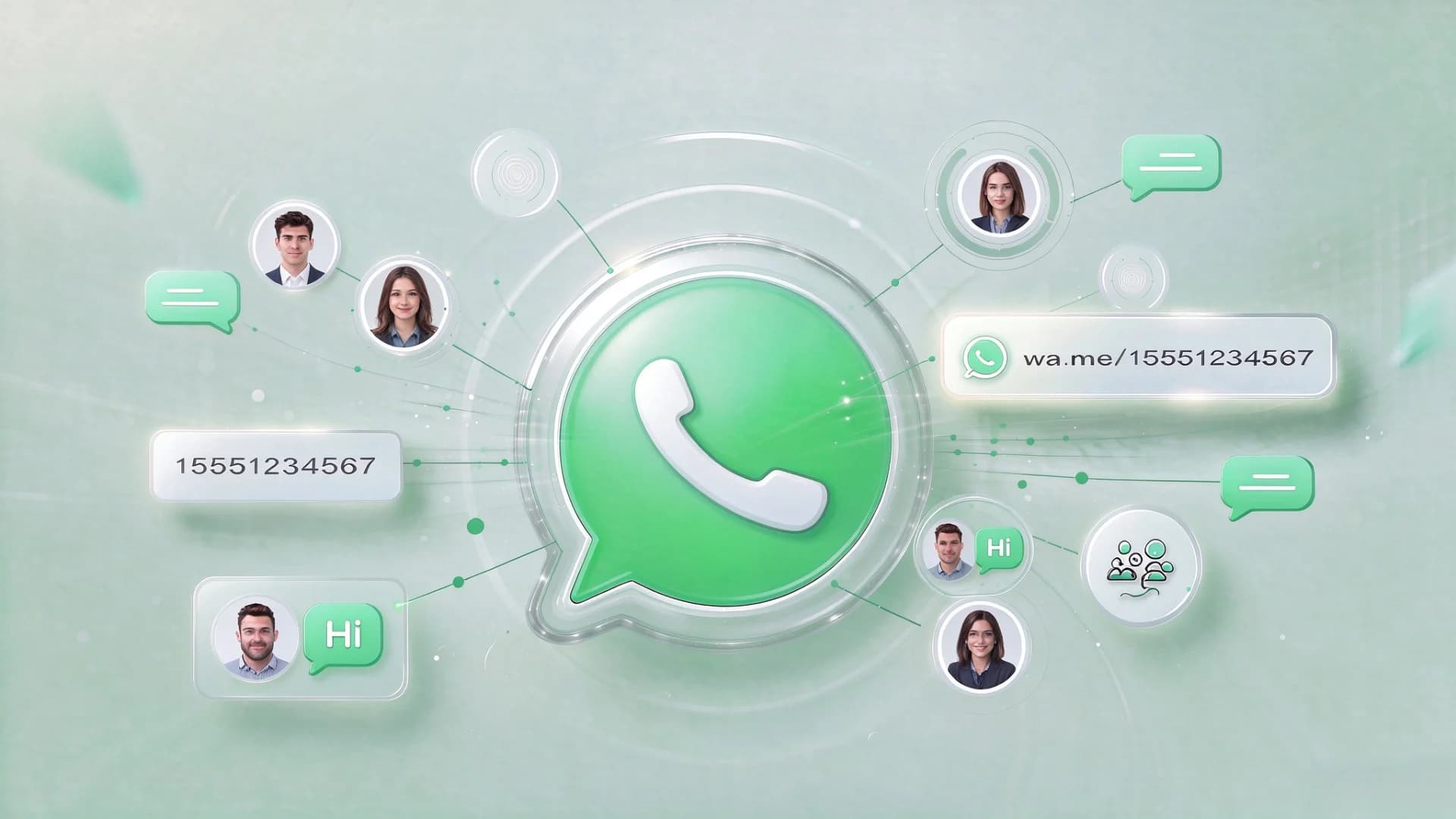
Both WhatsApp and WhatsApp Business users can create chat links directly using a URL, without installing additional tools.
There are two commonly used URL formats:
Format 1: wa.me
https://wa.me/15551234567Format 2: api.whatsapp.com
https://api.whatsapp.com/send?phone=15551234567Replace the example number with your own WhatsApp number. Use the full international phone number, including the country code, and omit any international dialing prefixes, plus signs, spaces, brackets, or hyphens.
Country | Phone number | WhatsApp link |
United States | +1 555 123 4567 | wa.me/15551234567 |
United Kingdom | +44 7700 900123 | wa.me/447700900123 |
Malaysia | +60 12 345 6789 | wa.me/60123456789 |
These numbers are for illustration only. For everyday use, the wa.me format is recommended because it is shorter and easier to share.
Creating links manually is free and flexible. It allows you to customize pre-filled messages without accessing the WhatsApp Business API. However, you need to format the phone number yourself, and standard chat links do not offer built-in account routing or customer source tracking.
This method works well for individual sellers, sales representatives, and e-commerce website operators who need a simple contact option on their websites, social media profiles, or email signatures.
Method 2: Generate a Short Link in WhatsApp Business
If you use WhatsApp Business, you can copy and share a built-in short link without manually editing a URL.
Follow these steps:
Open WhatsApp Business.
Go to Tools or Business Tools. On Android, you may need to open the More Options menu first.
Select Short Link.
Tap Copy Link or Share Link. You can also set a default message or access your business QR code.
The exact menu location may vary depending on your device and app version.
Compared with creating links manually, the built-in short link feature is more convenient. It requires no phone number formatting and supports default messages and business QR codes. However, each link directs customers to a single account.
This option is particularly useful for small businesses and online retailers already using WhatsApp Business for customer support, in-store promotions, product packaging, or trade shows.
Method 3: Create a Routing Link with SalesQuickly
When advertising campaigns or social media promotions generate a high volume of inquiries, directing every customer to the same WhatsApp account can overload your team and lead to slower responses.
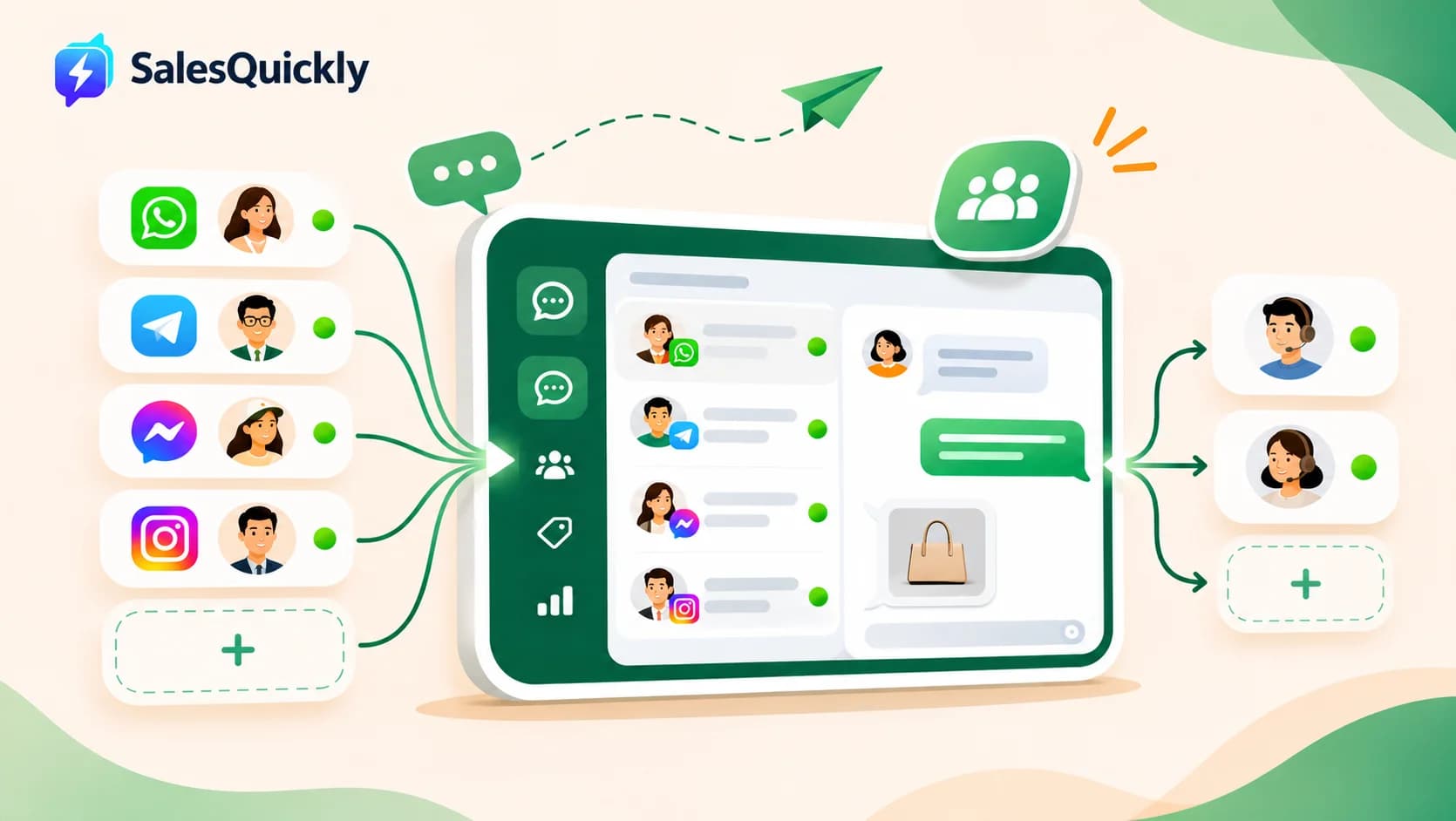
SalesQuickly lets you create routing links that automatically direct visitors to different WhatsApp accounts using random, round-robin, or time-based routing rules.
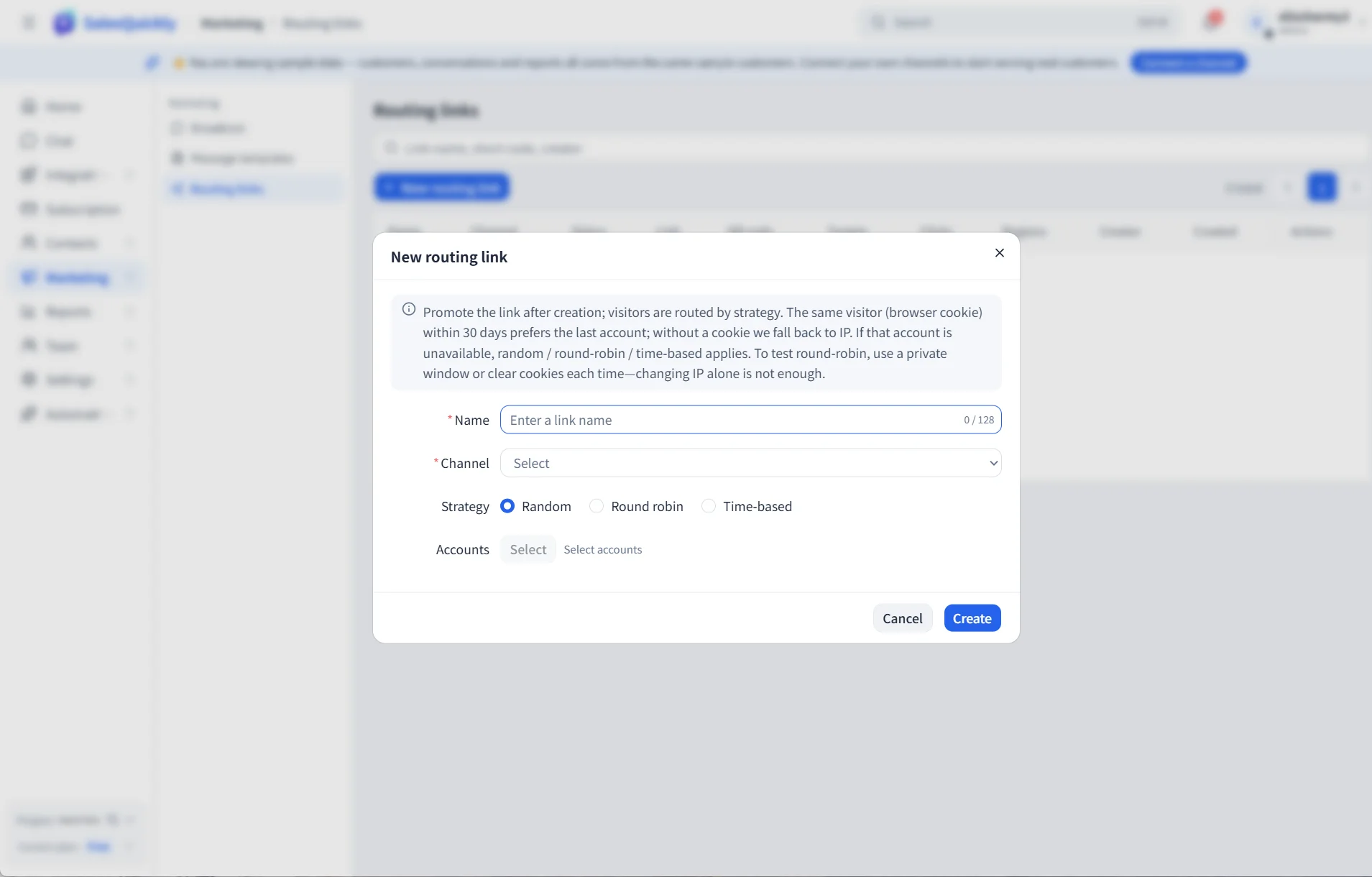
When a visitor returns within 30 days, the system prioritizes the previously assigned account based on browser cookies. If cookies are unavailable, it uses the visitor's IP address as a fallback. This helps reduce unnecessary reassignment.
To create a routing link:
Connect the WhatsApp accounts you want to use for routing to SalesQuickly.
Go to Marketing > Routing Links.
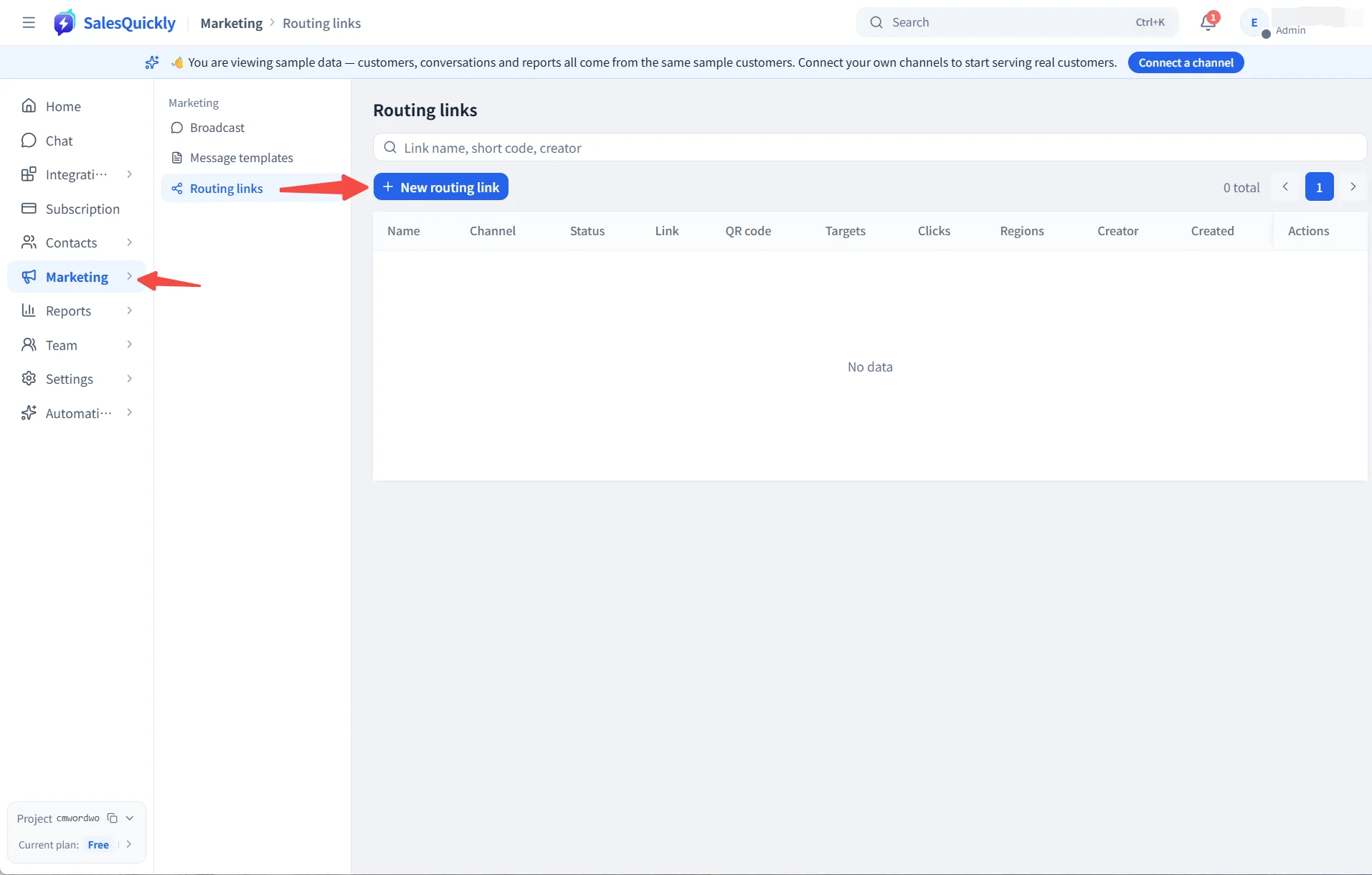
Create a routing link, select the channel and destination accounts, configure your routing rules, and add an optional pre-filled message.
Copy the generated link and share it on your website, social media profiles, or advertising campaigns.
Unlike standard WhatsApp links, a routing link provides a single entry point for multiple accounts. This simplifies link management when running campaigns across different channels, although you need to connect your accounts and configure routing rules before getting started.
It is especially useful for marketing teams running ongoing advertising campaigns and customer support teams that manage multiple WhatsApp accounts or work across different shifts.
WhatsApp Link Creation Methods Compared
Feature | Manual Link | WhatsApp Business | SalesQuickly |
Setup | Manual URL creation | Built-in feature | Account and routing setup |
Cost | Free | Free | Depends on the plan |
Pre-filled messages | Supported | Supported | Supported |
Multiple-account routing | No | No | Yes |
Returning visitor routing | No | No | Yes |
Unified team inbox | Not included | Not included in the short link feature | Yes |
Best for | Basic customer inquiries | Everyday business communication | Multi-account customer engagement |
If you only need a direct contact link, the first two methods are sufficient. For teams managing multiple WhatsApp accounts, routing links offer greater flexibility. An omnichannel customer communication platform like SalesQuickly can also help bring conversations from different channels into one place.
How to Add a Pre-filled Message to a WhatsApp Link
To display a default message when a customer opens a chat, add the ?text= parameter to your wa.me link.
For example, to pre-fill the message "Hello, I would like to know more.", use:
https://wa.me/15551234567?text=Hello%2C%20I%20would%20like%20to%20know%20more.Here, %20 represents a space and %2C represents a comma. The message must be URL-encoded to ensure it displays correctly.
When creating a SalesQuickly routing link, simply enter your default message in the opening message field. No manual URL encoding is required.
Pre-filled messages are not sent automatically. Customers can edit the message before sending it.
How to Test Your WhatsApp Link
Before publishing your link, test it on both mobile and desktop devices to make sure:
The link opens the WhatsApp chat successfully.
Messages are directed to the correct account.
The pre-filled message displays correctly.
Routing rules work as configured, if applicable.
If the link does not work, check the phone number format, account status, and routing settings.
Conclusion
Creating a WhatsApp link is simple, but choosing the right method depends on how you communicate with customers. For everyday inquiries, a manually created link or a WhatsApp Business short link is usually all you need.
If your team handles inquiries across multiple WhatsApp accounts, SalesQuickly routing links can help distribute incoming conversations and keep customer support manageable as demand grows.
FAQ
Where can I find my WhatsApp link?
In WhatsApp Business, go to Business Tools > Short Link to view and copy your link. If you use regular WhatsApp, you can create your own wa.me link using your phone number in international format.
How do I create a WhatsApp link from a phone number?
Use https://wa.me/ followed by the full phone number, including the country code. Remove plus signs, spaces, brackets, and hyphens. The number must be registered with WhatsApp.
How do I add a WhatsApp chat button to my website?
Create a WhatsApp link and set it as the destination URL for a button on your website. You can place the button in the bottom-right corner, on product pages, or on your contact page to make it easier for visitors to reach you.
Is it free to create a WhatsApp link?
Yes. Both manually created WhatsApp links and WhatsApp Business short links are free and do not require access to the WhatsApp Business API. Third-party tools offering advanced features such as multiple-account routing may charge additional fees.
Originally published by SalesQuickly. Please credit the source when reposting.